
Let’s be real – finding time to research and set up a streaming device when you’ve got kids demanding snacks and a house that looks like a toy store explosion isn’t exactly at the top of your priority list. I get it. After our ancient smart TV started buffering for what felt like eternity during family movie nights, I finally decided to try out the fire stick 4k to see if it could solve our streaming woes without requiring a degree in computer engineering to set up.
As a parent with limited tech time (and patience), I was skeptical that a small stick costing less than a family dinner out could actually deliver quality 4K streaming and make our older TV feel new again. After three months of daily use, spilled juice incidents, and countless button mashes from my toddler, I’ve got some thoughts about whether this device is actually worth your consideration.
Who Should (and Shouldn’t) Buy the Fire Stick 4K
If you’re a parent who needs a no-nonsense streaming solution that won’t break the bank, the Fire Stick 4K might be your new best friend. It’s ideal if:
- You have an older TV that needs a streaming upgrade
- You want access to major streaming platforms in one place
- You need something simple enough that older kids can operate independently
- You’re an Amazon Prime member (though this isn’t required)
- You want 4K quality without investing in a whole new television
However, this device isn’t for everyone. Skip the Fire Stick 4K if:
- You’re not willing to navigate Amazon’s somewhat ad-heavy interface
- You’re deeply invested in the Apple ecosystem (an Apple TV might serve you better)
- You need the absolute highest-end gaming capabilities in a streaming device
- You don’t have a 4K TV and don’t plan to get one (the standard Fire Stick would be more economical)
Product Overview
| Product Name | Amazon Fire Stick 4K |
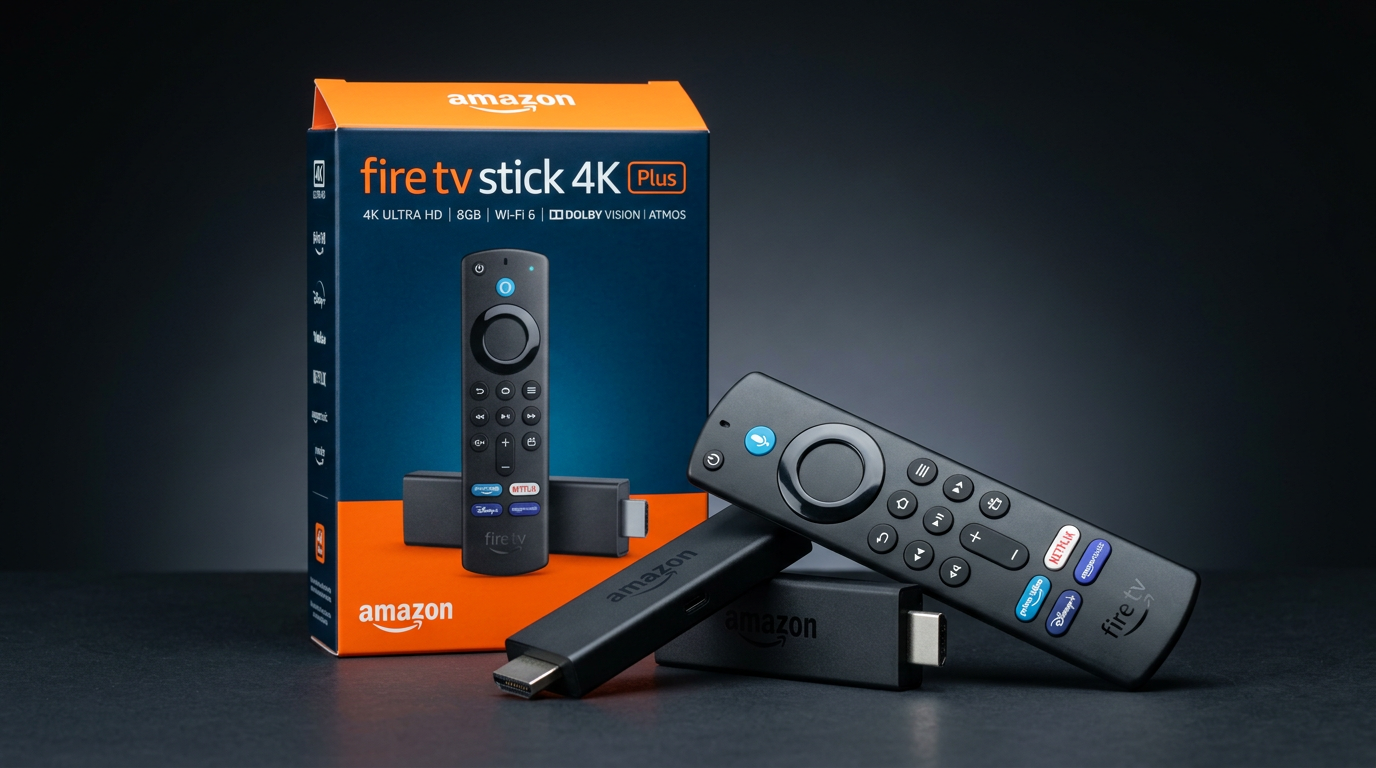
| Key Features | 4K Ultra HD, Dolby Vision, HDR10+, Alexa Voice Remote, 1.7 GHz quad-core processor |
| Price Range | $25-$50 (depending on sales) |
| Rating | ★★★★☆ (4/5) |
Value for Money: Budget vs. Premium Streaming
Let’s talk about the elephant in the room: is it worth buying a budget device like the Fire Stick 4K, or should you invest in something more premium like the Apple TV 4K or NVIDIA Shield?
Here’s the thing – after testing both budget and premium options in my living room, I’m convinced that for 90% of families, the Fire Stick 4K provides about 80% of the premium features at roughly 30% of the cost. That’s math that makes sense to me as a parent who’s constantly juggling household expenses.
At around $35-50 (and often on sale for even less), this little stick delivers 4K HDR content that genuinely looks impressive. I was prepared to see a noticeable quality drop compared to more expensive options, but on my 55″ 4K TV, shows like “The Mandalorian” and “Our Planet” looked vivid and crisp.
Where you will notice differences is in the interface speed and gaming capabilities. The Fire Stick 4K is quick enough for streaming and basic apps, but it doesn’t have the lightning-fast responsiveness of premium alternatives. For parents primarily using it to watch shows and movies, this minor lag won’t matter much in day-to-day use.
Where You Might Miss Premium Features
- The interface occasionally stutters when rapidly switching between apps
- Limited storage means you can’t install tons of games and apps
- The remote, while functional, doesn’t feel as substantial as premium options
But are these dealbreakers? For my family’s typical Netflix-Disney-YouTube rotation, absolutely not. The money saved can buy several months of streaming subscriptions instead.
Performance: How the Fire Stick 4K Holds Up
I was genuinely surprised by how well the 4K HDR streaming device performs in everyday use. The 1.7 GHz quad-core processor provides enough power to handle 4K streaming without constant buffering issues that plagued our smart TV’s built-in apps.
Video quality is where this device really shines. Shows and movies in 4K HDR look noticeably better than standard HD content, with richer colors and better contrast. My kids were mesmerized by the vibrant animation in “Moana” and “Encanto” – the difference was obvious even to their young eyes.
Streaming Performance
- Netflix: 4K content loads quickly and rarely buffers
- Disney+: Excellent picture quality, occasional slight delay when starting
- Amazon Prime Video: Unsurprisingly works flawlessly
- YouTube: 4K videos load without issue
- Hulu: Works well, though their 4K library is more limited
One evening, I ran what I call the “impatience test” – how quickly can you get from powering on to watching content before a 4-year-old has a meltdown? The Fire Stick 4K passed with flying colors, going from off to Bluey playing in about 30 seconds. Parent win.
Audio Performance
The device supports Dolby Atmos and Dolby Digital Plus, which is impressive at this price point. We don’t have a fancy surround sound system, just a basic soundbar, but even with this setup, the audio quality was noticeably better than our TV’s built-in apps.
I’ll be honest though – as a parent, the most important audio feature is actually the volume leveling that prevents commercials from blasting at 2x the volume of the show. Nothing worse than finally getting a toddler to sleep only to have a thunderous ad wake them up.
Design and Setup: Parent-Friendly?
When you’re a busy parent, the last thing you need is complicated tech setup. Fortunately, the Fire Stick 4K is about as straightforward as it gets:
- Plug into HDMI port
- Connect power adapter
- Follow on-screen setup instructions
The entire process took me about 10 minutes, including connecting to Wi-Fi and logging into my Amazon account. If you’ve ever set up any tech device, you’ll find this process painless.
The physical design is unobtrusive – just a small black stick that hides behind your TV. The included extender cable is helpful if your HDMI ports are tightly spaced. I appreciate that it doesn’t require prime TV stand real estate, which in our house is already cluttered with toys, remote controls, and the occasional juice box.
The Remote: Kid-Proof?
The Alexa Voice Remote that comes with the Fire Stick 4K deserves special mention. It’s simple enough that my 6-year-old mastered it quickly, with dedicated buttons for popular streaming services.
After using it for a while, I’ve found the voice control particularly helpful as a parent. When you’re holding a baby in one arm and a sippy cup in the other, being able to say “Play Peppa Pig” instead of typing it out is genuinely useful. The remote also has TV controls for power and volume, meaning one less remote to keep track of.
That said, the remote isn’t perfect. It’s not particularly rugged, and I worry about its longevity in a household with small children. We’ve already had one incident involving peanut butter that required a careful cleaning operation.
The Interface: Navigation for Busy Parents
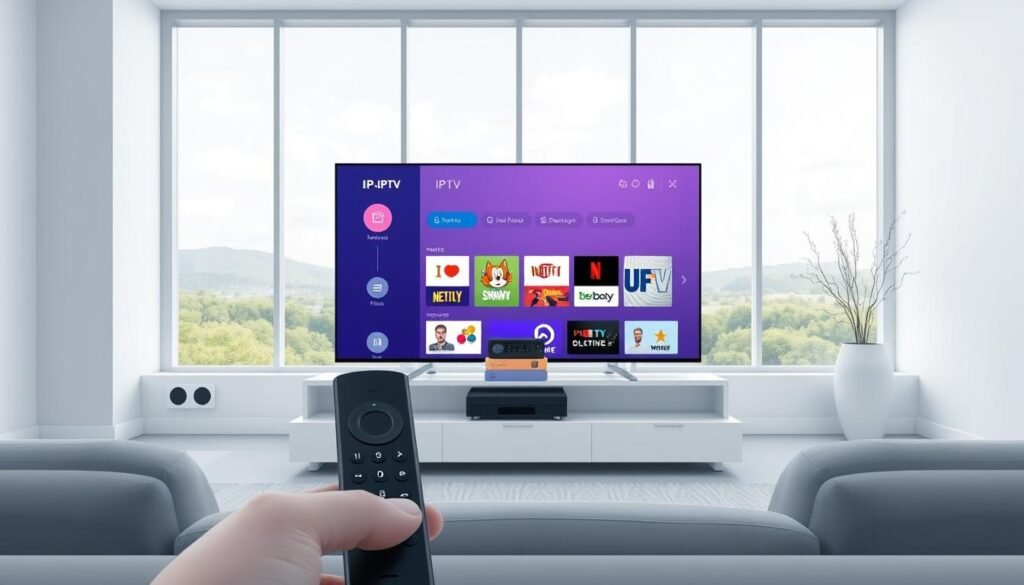
Amazon’s Fire TV interface is both a strength and weakness of this device. The home screen prioritizes content discovery, which can be helpful when you’re too tired to think about what to watch after a long day of parenting.
I found the interface reasonably intuitive but not perfect. The main categories are clearly labeled, and recently used apps appear prominently. However, there’s no denying that Amazon’s own content gets preferential treatment in the recommendations.
- Profiles for different family members (including kid-specific profiles)
- Parental controls to restrict content by rating
- Alexa voice search that actually understands what your kids are asking for
Honest Pros and Cons
What I Liked
- Excellent 4K HDR picture quality that rivals more expensive devices
- Voice control that actually works and saves time
- Fast and simple setup process
- Access to all major streaming platforms
- Affordable price point that doesn’t make you wince
- Compact design that doesn’t clutter your entertainment center
- Regular software updates that add new features
What Could Be Better
- Amazon-heavy interface with too many ads and promotions
- Occasional lag when switching between apps quickly
- Remote isn’t especially durable for households with young kids
- Limited storage space for apps and games (8GB)
- Requires separate power adapter (doesn’t power from TV USB port)
How It Compares: Fire Stick 4K vs. Roku Streaming Stick 4K
The Roku Streaming Stick 4K is the Fire Stick’s most direct competitor. After trying both in our home, the Fire Stick 4K excels with better Alexa voice control and a more powerful processor, while Roku wins with a cleaner, less ad-heavy interface. For Amazon ecosystem users, the Fire Stick is the clear winner.
Real Buyer Questions
Can I control the Fire Stick 4K with my phone if my kids lose the remote?
Yes! The Fire TV app (available for iOS and Android) turns your phone into a remote control over your home Wi-Fi network. It’s saved me multiple times when the remote ended up under the couch or repurposed as a toy spaceship.
How well do the parental controls work?
The parental controls are surprisingly effective — PIN protection for purchases, separate kids’ profiles with age-appropriate content, and time limits to avoid the “just one more episode” battles at bedtime.
Is the 4K version worth it if some of our TVs aren’t 4K yet?
Yes — it’s often only $10 more than the standard version, and the faster processor improves overall performance regardless of your TV’s resolution. It also future-proofs you when you upgrade.
How difficult is it to take on vacation for use in hotel rooms?
Very easy — just unplug it, toss it in your bag, and plug it into the hotel TV’s HDMI port. We’ve taken ours on two family trips and it was a lifesaver for keeping kids entertained.
Final Verdict: Is the Fire Stick 4K Worth It?
After three months of daily use in our busy household, the Fire Stick 4K has proven itself to be a reliable, high-value streaming device that delivers where it matters most. For parents looking for an affordable way to upgrade their home entertainment without committing to premium prices, it hits the sweet spot of performance and value.
While it’s not perfect – the interface could use fewer ads, and the remote might not survive years of abuse from enthusiastic toddlers – these drawbacks are minor considering the price point. The device delivers excellent 4K HDR picture quality, good performance, and enough smart features to make streaming simple even on your busiest days.